User Guide

Welcome to the Travelling BusinessMan User Guide!
Travelling BusinessMan, TBM, is a specialised contact management system targeted at business people with many international clients.
TBM sorts and organises your clients for you, streamlines your workflow, improves business efficiency and so much more. All this is at the convenience of the Command-Line Interface. TBM does more than just tracking your clients!
This user guide will be a starting point for you in getting oriented with how TBM works and how you can integrate it into your professional journey!
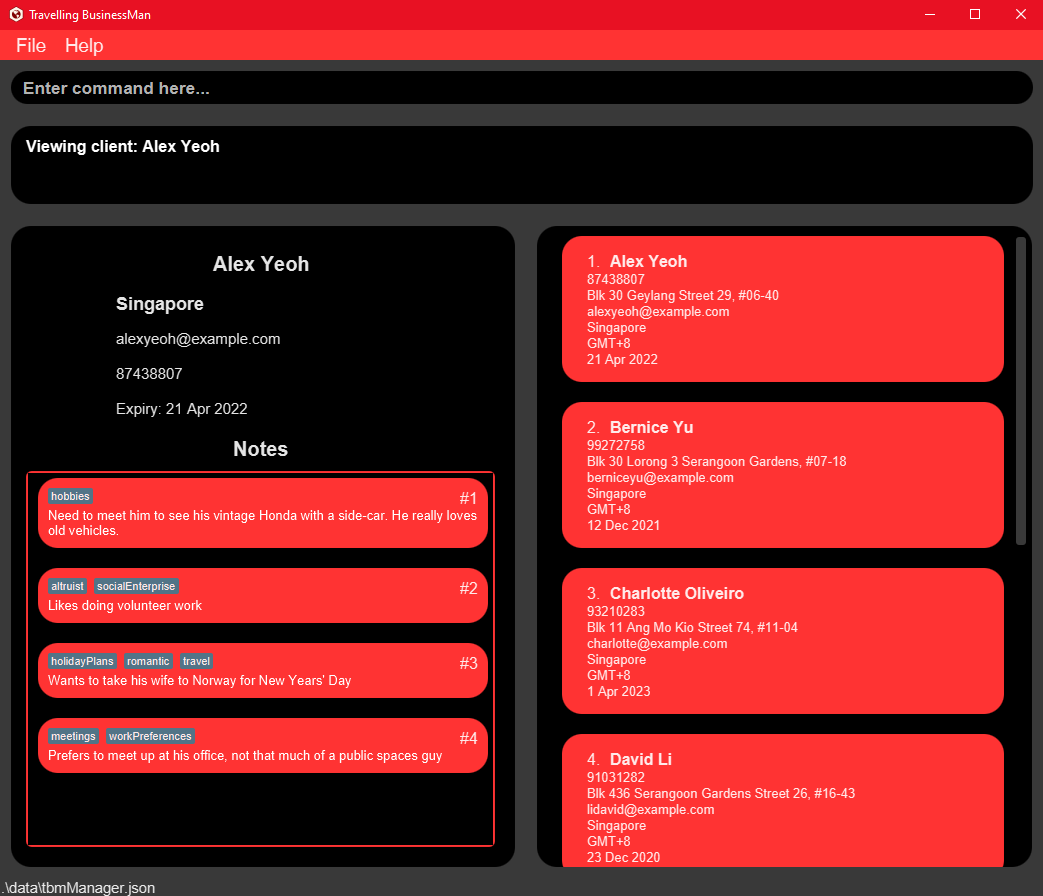
Figure 1. TBM Application
Table of Contents
- Table of Contents
- Quickstart
-
Features
- Viewing all saved clients:
list - Viewing help:
help - Adding a client:
client add - Viewing a client:
client view - Finding clients:
client find - Editing a client:
client edit - Deleting a client:
client delete - Saving data
- Adding client notes:
client note add - Deleting client notes:
client note delete - Editing client notes:
client note edit - Filtering clients by country:
country filter - Viewing notes for a country:
country note view - Adding notes for a country:
country note add - Editing notes for a country:
country note edit - Deleting notes for a country:
country note delete - Getting suggestions on clients:
suggest - Clearing all entries:
clear - Exiting the program:
exit
- Viewing all saved clients:
- Glossary
- FAQ
- Command summary
- Parameter constraints summary
- Appendix A - Introduction to the UI
Quickstart
 Please refer to the Introduction to UI if you’re trying TBM out for the first time.
Before you start using TBM,
-
Ensure you have Java 11.
-
Download the application file (.jar file) from here.
-
Navigate to the directory that the application file was downloaded to. To start the application:
-
Double click on the
TBM.jarfile and the application will start shortly. -
Alternatively, open any shell terminal in the current directory and run the command
java -jar TBM.jar.
-
Now that you have started TBM,
-
Type any command in the command box and press Enter to execute it.
-
(Recommended for new users) The
helpcommand will show a help page of some commonly used commands to fully utilise TBM.
Features
The following section outlines the commands supported by TBM. A short description is given for each command along with the format that they should be executed with. Complex commands also come with examples to demonstrate the purpose that the command serve.
Certain commands require parameters and the summary of these parameters as well as their prefixes and constraints can be found in our parameters summary table
A summary of all commands can be found in our command summary table
Notes about the command format:
-
Words in
UPPER_CASEare the parameters to be supplied by the user.
e.g. inclient add n/NAME,NAMEis a parameter which can be used asclient add n/John Doe. -
Items in square brackets are optional.
e.gn/NAME [ce/CONTRACT_EXPIRY_DATE]can be used asn/John Doe ce/2-3-2020(both supplied) or asn/John Doe(optional parameter missing). -
Items in round brackets mean that you have to supply at least one of them.
e.g.INDEX (n/NAME) (n/PHONE_NUMBER)can be used as1 n/John Doeor1 p/98899889or1 n/John Doe p/98899889, but not as1(i.e. both items are not supplied). -
Items with
… after them can be used multiple times including zero times.
e.g.[t/TAG]…can be used ast/friend,t/friend t/familyetc. -
Parameters can be in any order.
e.g. if the command specifiesn/NAME p/PHONE_NUMBER,p/PHONE_NUMBER n/NAMEis also acceptable.
Viewing all saved clients: list
Shows a list of all clients in TBM.
Format: list
Viewing help: help
Shows commonly used commands for TBM in a new help window. Pressing Esc will close this window.
Format: help
Adding a client: client add
Adds a new client to TBM.
Format: client add n/NAME p/PHONE_NUMBER e/EMAIL a/ADDRESS c/COUNTRY_CODE tz/TIMEZONE [ce/CONTRACT_EXPIRY_DATE]
Example:
-
Command:
client add n/Katya p/98123456 e/katya@yahoo.com a/Vladivostok, Nevelskogo, bld. 15, appt. 256 c/RU tz/GMT+3 ce/2-3-2020Adds a new client with name Katya, phone number 98123456, email katya@yahoo.com, address Vladivostok, Nevelskogo, bld. 15, appt. 256, country Russia, timezone GMT+3, contract expiry date 2 Mar 2020.
Viewing a client: client view
Views the client specified by the INDEX parameter.
Please refer to this if you need to be re-acquainted with the UI for client related commands
Format: client view INDEX
Example:
Given the current list of clients:
1. Katya
2. Alex
Command: client view 2
The information for the client at index 2 of the list will be shown. In the example above, Alex’s information will be displayed.
Finding clients: client find
Finds clients whose names contain any of the given keywords.
Format: client find KEYWORD [MORE_KEYWORDS]
- The search is case-insensitive. e.g
hanswill matchHans. - The order of the keywords does not matter. e.g.
Hans Bowill matchBo Hans. - Only the name is searched.
- Only full words will be matched e.g.
Hanwill not matchHans. - Clients matching at least one keyword will be returned (i.e. OR search). e.g.
Hans Bowill returnHans GruberandBo Yang.
Examples:
-
Command:
client find katyaFinds all clients with names that matches katya.
-
Command:
client find Katya HansFinds all clients whose names contain either Katya or Hans.
Editing a client: client edit
Edits a client’s information by their index in the list view. Only edits the fields that have been passed in as parameters.
Format: client edit INDEX (n/NAME) (p/PHONE) (e/EMAIL) (a/ADDRESS) (c/COUNTRY_CODE) (tz/TIMEZONE) (ce/CONTRACT_EXPIRY)
Examples:
-
Command:
client edit 5 n/KatyaOnly edits name to
Katya, other fields remain the same. -
Command:
client edit 4 n/Alek p/34842097 e/dcsdcr@nus.edu.sgEdits name to
Alek, phone number to34842097and email todcsdcr@nus.edu.sg, other fields remain the same. -
Command:
client edit 1 c/JP tz/GMT+7Edits country to
Japanand timezone toGMT+7, other fields remain the same.
Given the client below:
Client 1
--------
Name: Alex
Phone: 911
Country: Singapore
Timezone: GMT+8
...(other fields omitted)
Command: client edit 1 c/JP tz/GMT+7
Alex’s country and timezone will be edited and the following will be the result.
Client 1
--------
Name: Alex
Phone: 911
Country: Japan
Timezone: GMT+7
...(other fields omitted)
Deleting a client: client delete
Deletes a client by their index in the list view.
Format: client delete INDEX
Example:
-
Command:
client delete 5Deletes the client at index 5 of the list panel.
Saving data
Your data is automatically saved after every change. The file is saved in the ubiquitous .json format, which
allows you to edit the file manually without even opening TBM up.
The location for this file is ./data/tbmManager.json (indicated at the bottom left of the application), where the
. represents the directory where you have saved TBM.jar. Here’s a snippet of this editable text file:
{
  "clients" : [ {
    "name" : "Alex Yeoh",
    "phone" : "87438807",
    "email" : "alexyeoh@example.com",
    "address" : "Blk 30 Geylang Street 29, #06-40",
    "country" : "SG",
    "timezone" : "GMT+8",
    "contractExpiryDate" : "21-4-2022",
    "lastModifiedInstant" : "2020-01-01T00:00:00Z",
    "clientNotes" : [ {
      "contents" : "Wants to take his wife to Norway for New Years' Day",
      "countryCode" : "NULL_CC",
      "tags" : [ "romantic", "holidayPlans", "travel" ]
    } ]
  } ]
  . . .
}
Tweaking this file should be done only if you’re familiar with JSON
. If you’re new to JSON, here’s a good place to learn more.
Adding client notes: client note add
Format: client note add CLIENT_INDEX nt/NOTE_STRING [t/TAG]...
Examples:
-
Command:
client note add 1 t/pref nt/wants meetings to be as short as possible (preferably 30 mins)Adds a note with a tag to the first client in the list.
-
Command:
client note add 2 nt/prefers emails to callsAdds a note to the second client in the list.
-
Command:
client note add 4 t/meeting nt/need to slowly convince him to sign the contractAdds a note with a tag to the fourth client in the list.
Deleting client notes: client note delete
Deletes a note of a client (denoted by a client’s index) by the note’s index.
Format: client note delete CLIENT_INDEX NOTE_INDEX
Examples:
Given a list of notes:
Client: 3
Notes:
1. Loves dogs [tag: pref]
2. Hates cats [tag: pref]
Command: client note delete 3 2
The above command deletes the note regarding “Hates cats”. The resulting information will look like:
Client: 3
Notes:
1. Loves dogs [tag: pref]
Editing client notes: client note edit
Edits a note of a client (denoted by that client’s index) by the note’s index. Supplying tags to the command will add the tags onto the current existing tags for that note.
Format: client note edit CLIENT_INDEX NOTE_INDEX nt/NOTE_STRING [t/TAG]...
Examples:
Given a list of notes:
Client: 3
Notes:
1. Loves dogs [tag: pref]
2. Hates cats [tag: pref]
3. Apprehensive of resigning contract [tag: meeting]
Command: client note edit 3 2 nt/Loves cats t/important
The original note containing “Hates cats” will be changed to “Loves cats” with an additional tag (on top of the existing one). The resulting list will look like:
Client: 3
Notes:
1. Loves dogs [tag: pref]
2. Loves cats [tag: pref, important]
3. Apprehensive of resigning contract [tag: meeting]
Filtering clients by country: country filter
Filters the list of clients by the specified country.
Format: country filter c/COUNTRY_CODE
Examples:
-
Command:
country filter c/SGFilters by contacts in Singapore.
-
Command:
country filter c/RUFilters by contacts in Russia.
Viewing notes for a country: country note view
Please refer to this if you need to be re-acquainted with the UI for country note related commands
Views the list of country notes that are associated with the country corresponding to the country code supplied. If no country code is given, all country notes in TBM will be shown.
Format: country note view [c/COUNTRY_CODE]
Examples:
-
Command:
country note viewAll country notes in TBM will be displayed.
-
Command:
country note view c/SGOnly country notes for Singapore will be displayed.
Adding notes for a country: country note add
Adds a note that will be associated with the country corresponding to the country code supplied.
Format: country note add c/COUNTRY_CODE nt/NOTE_STRING [t/TAG]...
Examples:
-
Command:
country note add c/SG nt/has one of the lowest corporate taxes in the world t/taxAdds a note for the country of Singapore with the following specifications:
- Content: has one of the lowest corporate taxes in the world
- Tag: tax
-
Command:
country note add c/CN nt/building good relations (guanxi) is important when conducting business here t/interculturalAdds a note for the country of China with the following specifications:
- Content: building good relations (guanxi) is important when conducting business here
- Tag: intercultural
-
Command:
country note add c/IN nt/is world's fastest growing economyAdds a note for the country of India with the following specifications:
- Content: is world’s fastest growing economy
- Tag: untagged
Editing notes for a country: country note edit
Edits a note that is associated with a specific country at the given index based on the current view of the list panel displaying country notes. Supplying tags to the command will add the tags onto the current existing tags for that note.
Due to ambiguity, editing of a country note when the country notes panel is not being displayed is not allowed, and an error message will be shown if this is attempted.
Format: country note edit INDEX (nt/NOTE_STRING) (t/TAG)...
Example:
Given the list of country notes in the country note list panel:
Japan
--------
1. A high-context country, hence building relationships is important for doing business [tag: intercultural]

Singapore
--------
2. Small domestic market as compared to rest of SEA countries [tag: marketsize]

Thailand
--------
3. Political unrest in the capital [tag: politics]
Command: country note edit 2 nt/Rising middle class with increased purchasing power t/spending
Edits the second country note in the country notes panel. In this case, it will be the note under Singapore. The resulting list will look like:
Japan
--------
1. A high-context country, hence building relationships is important for doing business [tag: intercultural]

Singapore
--------
2. Rising middle class with increased purchasing power [tag: marketsize, spending]

Thailand
--------
3. Political unrest in the capital [tag: politics]
Deleting notes for a country: country note delete
Deletes a note that is associated with a specific country at the given index based on the current view of the list panel displaying country notes.
Due to ambiguity, deleting of a country note when the country notes panel is not being displayed is not allowed, and an error message will be shown if this is attempted.
Format: country note delete INDEX
Example:
-
Command:
country note delete 1Deletes the country note at index 1 of the country notes list panel.
Getting suggestions on clients: suggest
Obtains a list of clients based on the suggestion type(s) passed in.
Format: suggest by/SUGGESTION_TYPE [by/SUGGESTION_TYPE]...
Examples:
-
Command:
suggest by/availableObtains a list of clients where the time is 1800-2200 in the client’s timezone (off work hours).
-
Command:
suggest by/frequencyObtains a list of clients based on the last time their details were edited in TBM. Clients who have not been contacted for a longer period will be the first in the list.
-
suggest by/contractObtains a list of clients based on their current contract details. Clients whose contracts are expiring will be shown first.
-
suggest by/contract by/availableObtains a list of clients based on their current contract details but only clients who are available will be shown. Clients whose contracts are expiring will be shown first.
Clearing all entries: clear
Deletes all existing information from the application. The end result will be an application with no client/note/country data.
Format: clear
Exiting the program: exit
Exits the program.
Format: exit
Glossary
- Business Contact: Synonymous with Client
- Client: Refers to a person whom the user is conducting his/her business with
- GMT: Greenwich Mean Time
- Mainstream OS: Windows, Linux, Unix, macOS
- TBM: Initialism for Travelling BusinessMan
FAQ
Q: How do I transfer my data to another Computer?
A: Install the app in the other computer and overwrite the empty data file it creates with the file that contains the data of your previous TBM home folder.
Command summary
| Action | Format, Examples |
|---|---|
| List all clients | list |
| Add client |
client add n/NAME p/PHONE_NUMBER e/EMAIL a/ADDRESS c/COUNTRY_CODE tz/TIMEZONE [ce/CONTRACT_EXPIRY_DATE] e.g., client add n/Katya p/98123456 e/katya@yahoo.com a/Vladivostok, Nevelskogo, bld. 15, appt. 256 c/RU tz/GMT+3 ce/22-12-2020
|
| Edit client |
client edit INDEX (n/NAME) (p/PHONE) (e/EMAIL) (a/ADDRESS) (c/COUNTRY_CODE) (tz/TIMEZONE) (ce/CONTRACT_EXPIRY_DATE)e.g., client edit 3 c/JP tz/GMT+7
|
| View client |
client view INDEX e.g., client view 2
|
| Find client |
client find KEYWORD [MORE_KEYWORDS]e.g., client find Hans
|
| Delete client |
client delete INDEXe.g., client delete 3
|
| Add client note |
client note add CLIENT_INDEX nt/NOTE_STRING [t/TAG]... e.g., client note add 4 t/meeting nt/need to slowly convince him to sign the contract
|
| Delete client note |
client note delete CLIENT_INDEX NOTE_INDEX e.g., client note delete 3 2
|
| Edit client note |
client note edit CLIENT_INDEX NOTE_INDEX nt/NOTE_STRING [t/TAG]... e.g., client note edit 3 2 nt/Loves cats
|
| Filter by country |
country filter c/COUNTRY_CODE e.g., country filter c/SG
|
| View country note |
country note view [c/COUNTRY_CODE] e.g., country note view c/SG
|
| Add country note |
country note add c/COUNTRY_CODE nt/NOTE_STRING [t/TAG]... e.g., country note add c/SG nt/has one of the lowest coporate taxes in the world t/tax
|
| Edit country note |
country note edit INDEX (nt/NOTE_STRING) (t/TAG)... e.g., country note edit 1 nt/has one of the lowest coporate taxes in the world t/tax
|
| Delete country note |
country note delete INDEX e.g., country note delete 1
|
| Get suggestions |
suggest by/SUGGESTION_TYPE [by/SUGGESTION_TYPE]... e.g., suggest by/available by/frequency
|
| Clear | clear |
| Exit | exit |
| Help | help |
Parameter constraints summary
| Parameter | Prefix | Constraints, Examples |
|---|---|---|
| NAME | n/ |
Names should only contain alphanumeric characters and spaces, and it should not be blank. e.g. n/John Doe
|
| PHONE_NUMBER | p/ |
Phone numbers should only contain numbers, and it should be at least 3 digits long. e.g. p/9123 4567
|
e/ |
Emails should be of the format local-part@domain. e.g. e/katya@yahoo.com
|
|
| ADDRESS | a/ |
Addresses can take any values, and it should not be blank. e.g. Vladivostok, Nevelskogo, bld. 15, appt. 256
|
| COUNTRY_CODE | c/ |
A 2-letter country code that follows the ISO3166 specification. List of country codes. e.g. c/SG (Singapore) |
| TIMEZONE | tz/ |
Timezone should be given in offsets relative to Greenwich Mean Time. e.g. tz/GMT+8
|
| CONTRACT_EXPIRY_DATE | ce/ |
Date should be given in the format “DD-MM-YYYY”. e.g. ce/10-10-2020
|
| NOTE_STRING | nt/ |
Notes can take any values, and it should not be blank. e.g. nt/Likes cats
|
| TAG | t/ |
Tags names should be alphanumeric and have a maximum of 45 characters. e.g. t/important
|
| SUGGESTION_TYPE | by/ |
Suggestion types can only be either available, contract or frequency. e.g. by/available
|
| INDEX | - | Index is a number greater than 0 that is based on the numberings beside each client or note. e.g. 1 would refer to the first client or note. |
Appendix A - Introduction to the UI
Start Page
The diagram below shows the key UI elements of TBM upon first start-up.
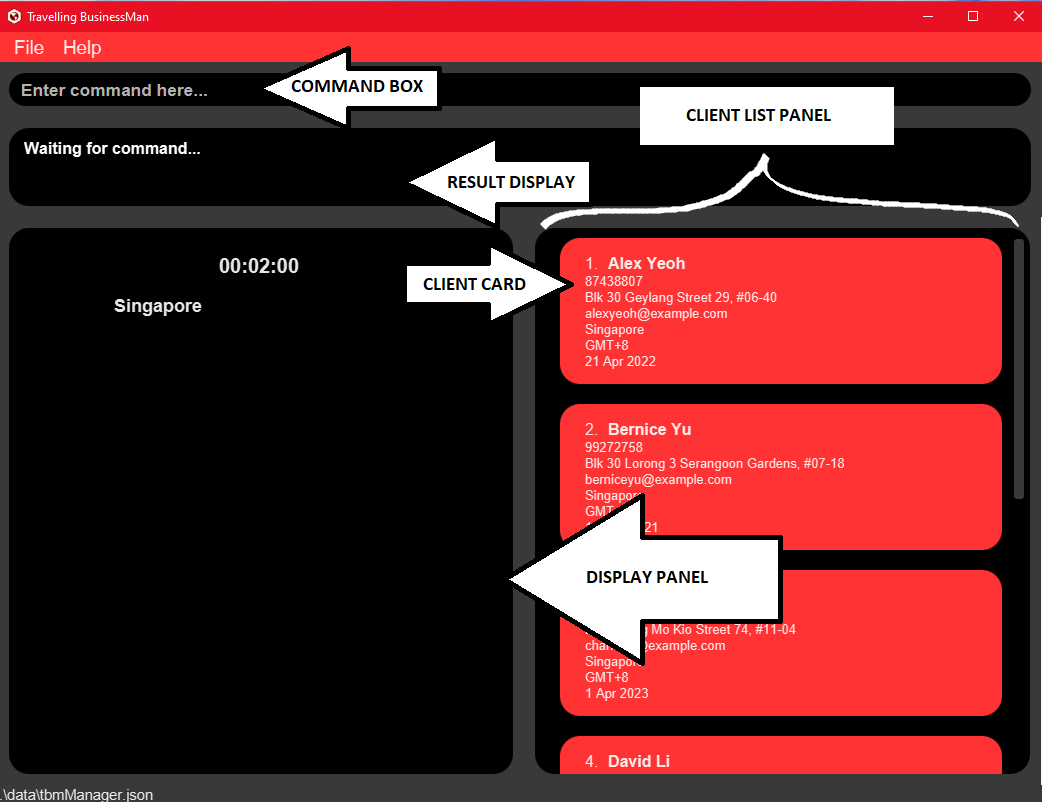
Figure 2. Default View
-
Command Box allows you to input commands to interact with TBM.
-
Client List Panel will always allow you to view all your clients’ information at a go. It’s scrollable so that you never have to worry about not being able to see all your important clients at a single glance!
-
Client Card will show you brief information about a particular client.
-
Result Display will show you the output of executing your command.
-
It indicates successful commands.
-
On the off-chance there’s a syntax issue, TBM will remind you of the correct syntax it expects, something like this:

Figure 3. Error Display
-
- Display Panel shall render Client Cards or Country Cards when relevant commands are sent. The default view shows you your local time to the precise second, as well as your current location.
UI when Viewing Clients
The diagram below is what you should see upon viewing a particular client (i.e. firing up the command client view 1
). It shows how to identify a particular client’s CLIENT_INDEX, and an associated note’s CLIENT_NOTE_INDEX.
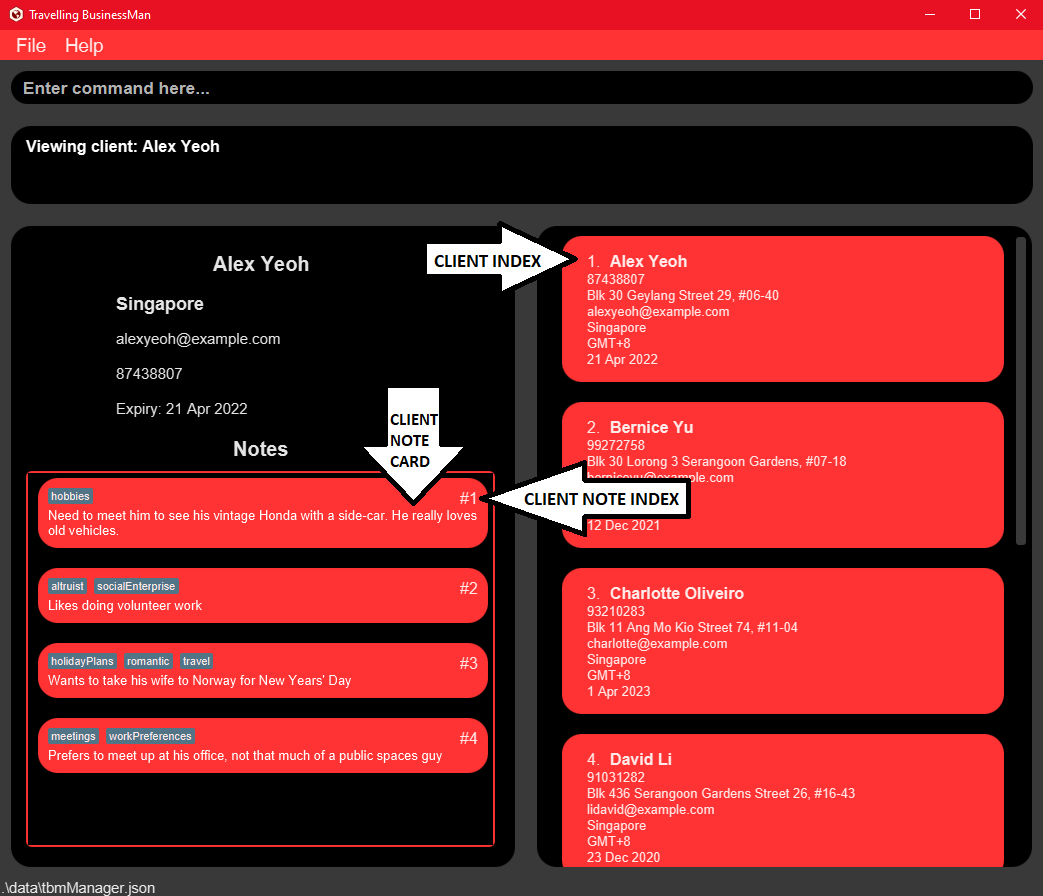
Figure 4. Client View
Here, the Client Note Card displaying the note that’s tagged as hobbies is referred to by the CLIENT_INDEX of 1.
Being able to identify these is key to adding, deleting and editing client notes as well as editing clients.
UI when Viewing Country
Similarly, COUNTRY_NOTE_INDEX can be identified like so by referring to the index indicated on the Country Note Card:
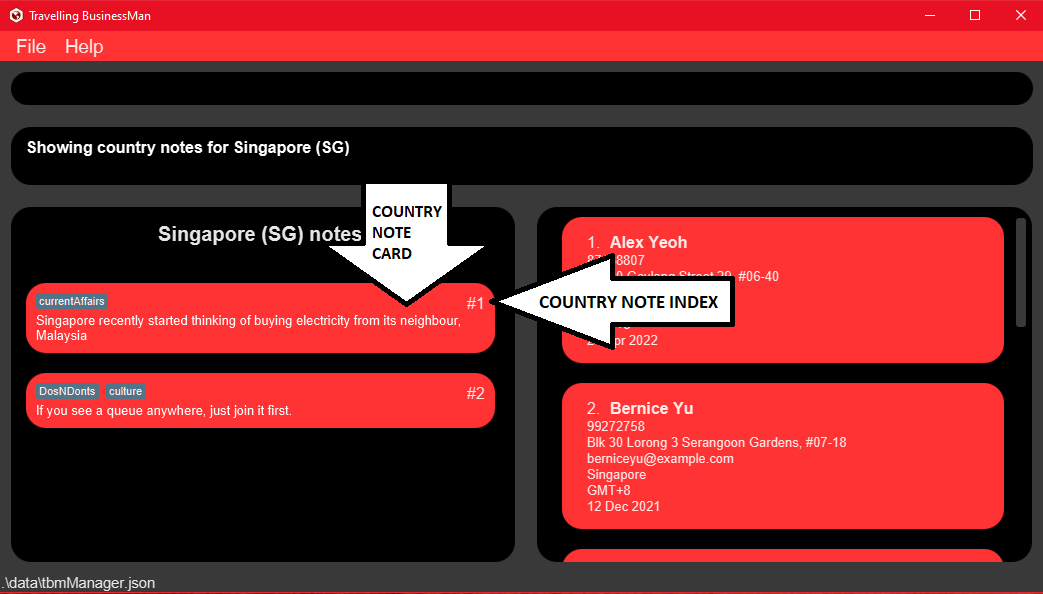
Figure 5. Country Note View
Help Window
This is what to expect when you type in the help command or press F1:
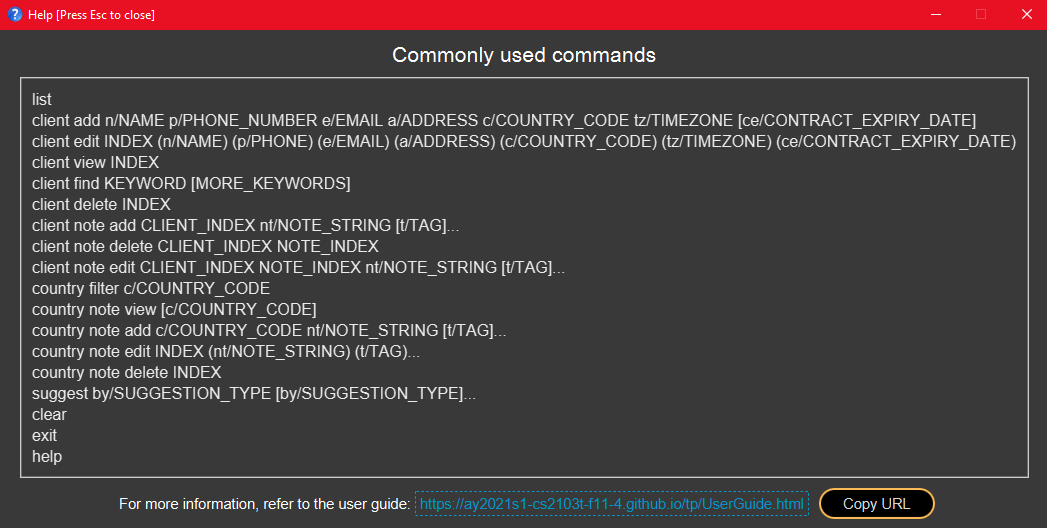
Figure 6. Help Window
{End of Appendix A, please return to the Table of Contents }